
Welcome to Pitney Bowes Support
We're here to help.
Search by topics
Popular Search Topics
(07 items)
Product Help
(09 items)
Billing & Financials
(04 items)
Your Account Portal
(03 items)
Product Management
(04 items)
Postage
(04 items)
Popular Search Topics
Connecting products to Pitney Bowes, the internet, and other products
Information on all the upcoming postage regulations
Common error codes, error messages, and troubleshooting problems
Printing labels, stamps, envelopes, and other items
Paying and transferring postage funds, postage balances and setting up alerts
Payment option details, request a credit or refund
Explanation of Invoices, fees and transaction charges
Product Help
Common error codes, error messages, and troubleshooting problems
Configuring product features and settings
Mailing and shipping procedures, requirements, classes, and carriers
Printing labels, stamps, envelopes, and other items
Viewing transaction history, running reports, and cost accounting
Installing or reinstalling products and parts such as ink and printheads, downloading drivers
Upkeep of equipment
Connecting products to Pitney Bowes, the internet, and other products
Managing incoming mail and packages, including lockers
Billing & Financials
Payment option details, request a credit or refund
Explanation of Invoices, fees and transaction charges
Download W9 forms for any Pitney Bowes account
Changes of address, company name or company ownership
Your Account Portal
Modify setting of your online profile such as changing password and security question
Create on online profile, grant online access to another person in your organization
Set up or modify the notifications sent to your email address
Product Management
Removing and transferring funds
Terms and Conditions, contract information
ValueMax Rewards program
Ordering or returning supplies
Postage
Adding or refilling postage, checking your postage balance
Information regarding USPS postal rate changes and how to update your products
Paying and transferring postage funds, postage balances and setting up alerts
Steps to run historical postage usage reports and trend analysis
Require assistance with your account or billing? We're here to help.
Quickly discover solutions. Receive immediate assistance with your account, billing, and payments. No need to wait.
Search by Products
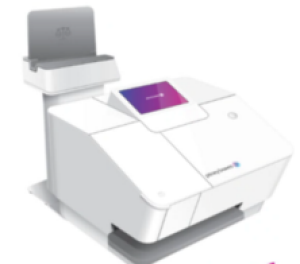 Popular Products
(10 items)
Popular Products
(10 items)
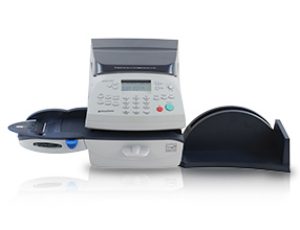 Postage Meters
(20 items)
Postage Meters
(20 items)
 Shipping Software & Online Postage
(08 items)
Shipping Software & Online Postage
(08 items)
 Mail Accounting & Expense Management
(03 items)
Mail Accounting & Expense Management
(03 items)
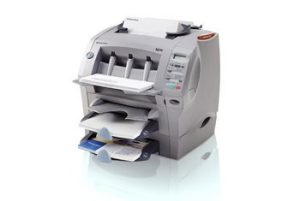 Mailing Equipment & Software
(46 items)
Mailing Equipment & Software
(46 items)
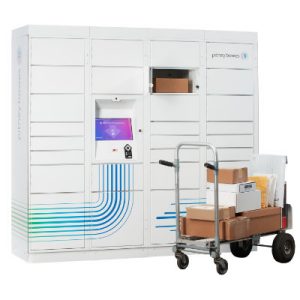 Parcel Lockers & Tracking
(05 items)
Parcel Lockers & Tracking
(05 items)
Popular Products
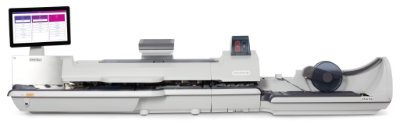
Postage Meters
Shipping Software & Online Postage
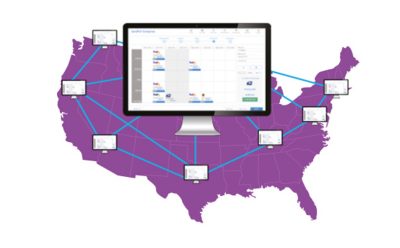

Mail Accounting & Expense Management
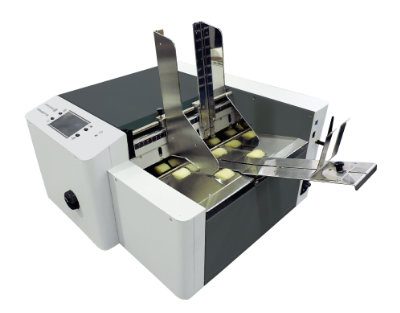
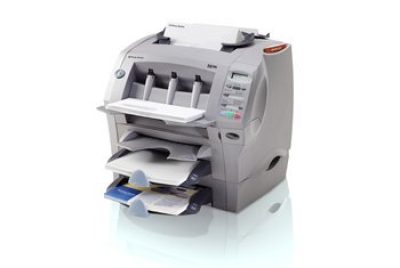
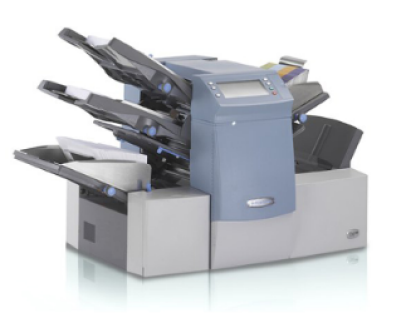
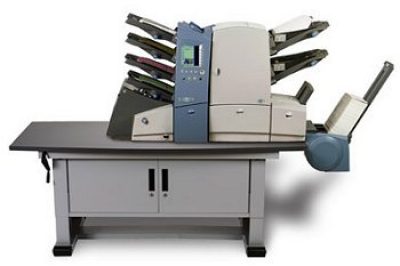
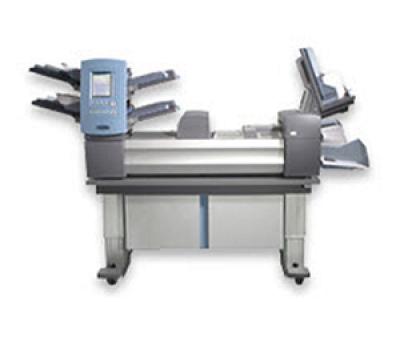
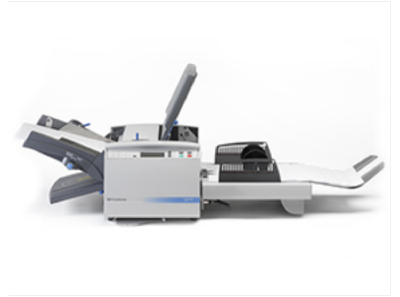
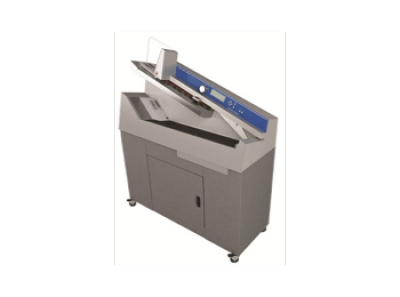
Mailing Equipment & Software
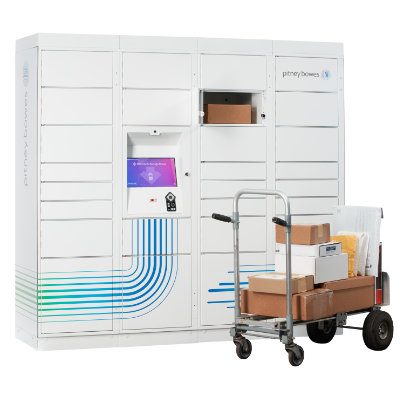


Parcel Lockers & Tracking
USPS & Carrier Rate Updates
Stay up to date on carrier mailing and shipping updates throughout the year. Find the latest news, current rates, and how Pitney Bowes can help you save money through every rate change.
For information on service offerings and level of support, download the
Pitney Bowes Technical Support Overview